 GMB Radar
Checking local rankings usually means opening a dashboard, choosing settings, waiting for a scan and then working out what the numbers mean. The numbers are the easy part. The hard part is knowing why a business ranks badly in one part of town and what to do about it.
The GMBRadar connector for Claude does both. You ask in plain words, Claude runs the scan, and then it explains the result: where you are strong, who beats you and which changes are most likely to help. Most local rank trackers stop at the dashboard. This one puts your rank data, and an analyst that understands it, inside the AI assistant you already use.
Important: Claude always tells you the credit cost before it runs a scan, and it asks you to confirm before it deletes anything. Nothing is spent or removed without your yes.
What the connector does
The GMBRadar connector lets you run and review Google Maps ranking scans by chatting with Claude. You ask in plain words; Claude picks the right action, asks about the choices that matter, and tells you the credit cost before it spends anything.
With it you can:
- Review scans. List them, filter by business, and open the results of any scan.
- Run new scans. Choose keywords, grid shape, grid size and radius. The scan starts right away and usually finishes in seconds.
- Repeat or schedule. Re-run a scan, or schedule it daily, weekly, every two weeks or monthly.
- Understand results. See strong and weak areas, competitors, and who outranks you at a specific spot.
- See who advertises. Find out which businesses pay for ads on your keywords (sponsored results).
- Manage your account. Add or remove businesses, organize them in groups, and check your credits.
- Track organic rankings. Check your map pack and website rankings in Google web search.
Why GMBRadar’s connector stands out
Connecting a rank tracker to an AI assistant is still new, and only a handful of local SEO platforms offer it. Many tools give you a dashboard and an export, and leave the interpretation to you. GMBRadar’s connector is built around the whole job, from running the scan to deciding what to fix.
| What you get | Why it matters |
|---|---|
| Built-in AI analysis, not just data access | Claude arrives with a local SEO playbook. It diagnoses why you rank where you do, compares you with the top competitors and gives 3 to 5 prioritized actions. |
| The full scan workflow by chat | Choose keywords, grid shape, size and radius, see the credit cost, run the scan and read the result without leaving the conversation. |
| Scheduling in plain words | Say “schedule this weekly” and Claude sets the day and time, converts time zones and suggests a time when the business is open. |
| Competitors and ads kept separate | Organic competitors and sponsored results are never mixed, so your rank comparisons stay accurate and you still see who pays for your keywords. |
| Maps scans and organic search in one place | Geo-grid scans, map pack and web rankings, groups and credits all work from the same connector. |
| You stay in control | Sign in with your GMBRadar account, grant only the permissions you need, and confirm before Claude spends credits or deletes anything. |
The difference is the combination. Having an assistant read your numbers is useful. Having it run the scan, schedule it, read the grid and tell you what to do next is a different experience, and it is what this connector is designed for.
Getting started
Add the connector in Claude, sign in to GMBRadar, and test it with one request.
- In Claude, open Settings, then Connectors, and choose Add custom connector. Menu names can differ slightly between web, desktop and mobile.
- Enter the connector address
https://ai.gmbradar.com/mcpand save. - Click Connect. Claude sends you to GMBRadar to sign in and approve access.
- Back in Claude, turn the GMBRadar connector on for your chat and ask: “List my 5 most recent scans.”
If you use Claude Code or another client that can send custom headers, you can skip the sign-in and authenticate with your GMBRadar API key in the X-GMBRadar-API-Key header instead.
Access and permissions
The connector only sees the data in your own GMBRadar account. Each action needs a permission, called a scope: reading or writing businesses, scans, groups, reports, and account details. Pausing a scheduled scan needs a separate cancel permission.
If Claude reports a “forbidden” error, ask it to “test my GMBRadar connection”. It lists the permissions your connection has, so you can see what is missing. Disconnecting the connector in Claude stops Claude from reaching your account.
Your data and privacy
Claude reaches GMBRadar only through the account you sign in with, so it can only see and change what your account can. You approve access on a GMBRadar sign-in page, and your API key is stored encrypted on the connector server. You can disconnect at any time from Claude's connector settings, and the connector stops working immediately.
Quick start: your first scan
You can go from a business to a finished scan in five steps, all in conversation.
- Pick a business. Ask “Show my businesses.” If it is missing, say “Add this business” and give its Google Place ID (see Managing businesses and groups).
- Choose keywords. Say “Run a scan for [business name].” Claude suggests keywords based on the business's categories, name and location.
- Set the grid. Claude asks for the grid shape, grid size and radius, and recommends values for your area.
- Confirm the cost. Claude shows the number of searches and your remaining credits, then waits for your yes.
- Read the result. The scan runs immediately. Claude checks it after a few seconds and summarizes the average rank, strong and weak areas, competitors and sponsored results, with a link to the full report.
Afterwards Claude offers to schedule the scan, so you can see how rankings change over time.
Everyday tasks
Most of what you do is one plain-language request. When Claude shows a numbered list of scans, you can refer to a row by its number, for example “scan 3”.
| Task | Example request | What you get |
|---|---|---|
| List businesses | “List my 10 most recent businesses” | Name, address, rating, reviews and categories |
| Add a business | “Add this business: ChIJ...” | The business is added; Claude asks if you want an alias |
| List scans | “Show recent scans for Maple Street Salon” | Numbered list with keyword, points, average rank, date and report link |
| Analyze a scan | “Get details of scan 1” or “How am I ranking?” | Summary, strong and weak areas, competitors, sponsored results |
| See who outranks you | “Who is #1 at the north-east corner?” | The ranked list a searcher saw at that point |
| Check a competitor | “How does Glow Studio rank across this scan?” | That competitor's rank at every grid point |
| Repeat a scan | “Run scan 3 again” | New results with the same settings and the same cost |
| See the history | “Show how this scan has changed” | Every run, oldest to newest, with the change summarized |
| Show the map | “Show the ranking map for scan 1” | A color-coded image of your rank at each grid point |
| Schedule a scan | “Schedule this scan weekly” | A recurring schedule (see Scheduling scans) |
| Delete a scan | “Delete scan 5” | Claude asks you to confirm first; deleting cannot be undone |
Creating a scan
A scan searches Google Maps from many points around your business and records your rank at each one. Four choices shape it, and Claude asks about them and recommends values.
| Choice | What it means | How to choose |
|---|---|---|
| Keywords | The search terms to check. Each keyword is a separate scan. | Claude suggests 3 to 5 from your categories, business name and location, such as “hair salon” or “hair salon Scarborough”. Your primary category is usually the main keyword. |
| Grid shape | Square or circle | Square suits city streets and neighborhoods; circle covers a round area around the business. Default: square. |
| Grid size | The number of search points | Square sizes run from 3x3 to 15x15 (9 to 225 points); default 5x5 (25). More points give more detail and cost more credits. Circle grids use sizes 1 to 7. |
| Radius | Distance from the center to the edge of the grid | Zip code or neighborhood: 1 to 2 km (0.6 to 1.2 mi). Around the business: 2 to 5 km (1.2 to 3 mi). A whole mid-size city: about 10 km (6 mi). A large metro: 15 to 25 km (10 to 15 mi). Give km or miles. |
A wider radius needs a bigger grid. In a square grid, points sit radius divided by ((size minus 1) divided by 2) apart. A 10 km radius on a 5x5 grid puts points 5 km apart, which is too coarse for a city; a 9x9 grid gives 2.5 km.
Advanced options
Claude does not ask about these unless you want them. Say “show advanced options” to see them:
- Zoom: the Google Maps zoom level, 3 to 21. Default 15.
- Device: desktop (Windows or macOS) or mobile (Android or iOS). Default: desktop Windows.
- Language: the search language. Default: English.
- Priority: standard by default. High runs faster and costs double.
- Grid center: defaults to the business location. If a business has no map location on file, Claude asks you for a center instead of scanning.
What happens next
The scan starts as soon as you confirm. It usually finishes within a few seconds; larger grids and more keywords take longer. Claude checks the status after a short wait, summarizes the result, and tells you if it is still running.
Scheduling scans
A single scan is a snapshot. A schedule shows how your rankings change, which you need to track progress and to measure the effect of local SEO work. Claude suggests scheduling after a scan finishes and when you review a scan that has only run once.
| Choice | What to know |
|---|---|
| Frequency | Weekly for general tracking. Daily for a short period right after major SEO changes. Every two weeks or monthly for stable businesses. |
| Start date | Tomorrow, next week, or a date you pick. Claude tells you the exact date and time of the first run. |
| Start time | Rankings can differ when a business is open and when it is closed, and open businesses tend to have a better chance of showing. Claude suggests a time when the business is open. Keep the same day and time for every run so results are comparable. |
| Priority | Scheduled scans run in the background, so they use standard priority to save credits. |
You give times in your own time zone and Claude converts them. It confirms the time in both the business's local time and yours. Schedules run at a fixed UTC time, so the local time shifts by an hour when daylight saving changes.
Cost and first run
Each run uses credits equal to the scan's grid points. A 37-point scan scheduled weekly uses about 37 credits per run. A schedule is built on an existing scan, and a scan runs as soon as it is created, so the first run has already happened when you schedule it.
Managing schedules
- List: “Show my scheduled scans” shows each schedule's frequency, status and next run. Status is active, disabled (paused) or complete (a one-time run that has finished).
- Pause: “Pause the weekly schedule for Glow Studio.” This needs the cancel permission.
- Resume: “Resume that schedule.”
Reading your results
Compare scans using the overall average rank, because the plain average only counts the points where you appeared and can look better than it is. A business that ranks first at one point out of nine shows an average of 1.00 but an overall average near 18.
| Measure | What it means |
|---|---|
| Rank | Your position in the results at one grid point. Each search shows up to 20 businesses. |
| Unranked point | A point where your business did not appear in the results. |
| Best and worst rank | Your highest and lowest positions across the ranked points. |
| Average rank | The average over ranked points only. |
| Average rank (overall) | The average including unranked points. Use this one to compare scans and competitors. |
| Ranked points | How many grid points your business appeared at, out of the total. |
Strong and weak areas
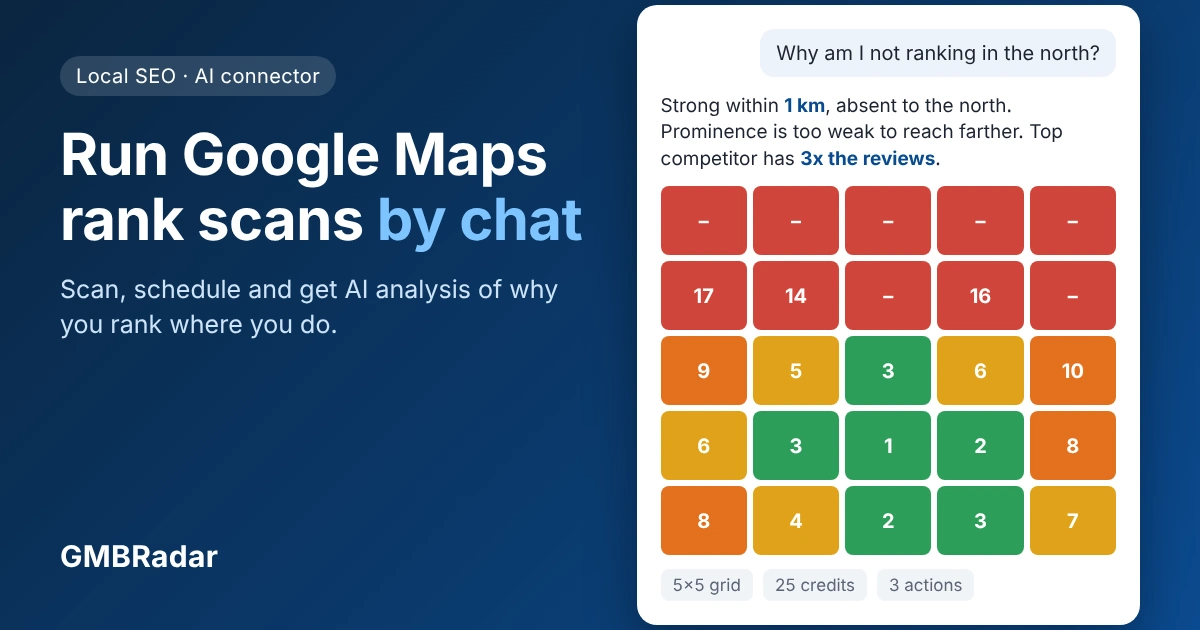
Claude describes where you rank well and badly in terms of direction from your business, such as “strong within about 1 km, absent to the north”. North is higher latitude and east is higher longitude.
Competitors
Competitors are the organic businesses that appeared in the scan's searches, with their average rank, rating and review count. Compare them using the overall average. Claude can also show one competitor's rank at every grid point.
Sponsored results
Sponsored results are businesses that paid Google to appear in the same searches. They are listed separately and never mixed into rankings or averages, because they are not organic. They show you who you compete with in paid results and which kinds of businesses advertise for a keyword, which helps you decide whether ads could be worthwhile.
Going deeper
- Who ranks first at a point: ask, and Claude shows the full list a searcher saw there.
- History: a scan that has been run more than once has a history. Claude lists every run from oldest to newest and summarizes the change.
- Ranking map: ask for it, or use the “View full report” link that appears with each scan.
AI analysis and recommendations
The dashboard shows your numbers. Claude explains them: why you rank where you do, why competitors beat you, and what to do next. Ask “why am I not ranking in the north?” or “how do I beat the top salon?” and Claude reads the scan, pulls the evidence it needs and gives a short, prioritized plan.
Try prompts like these after a scan:
- “Why am I not ranking in the north-east part of the grid?”
- “What should I do to outrank the top competitor for this keyword?”
- “Compare my last three scans and tell me whether things improved.”
- “Which of my keywords has the biggest opportunity?”
- “Give me a 30-day plan to improve my Maps ranking.”
How Claude analyzes a scan
- Gathers evidence. It reads the scan details, compares earlier runs of the same keyword, and checks who ranks first at 2 or 3 of your weakest points.
- Reads the grid. Coverage (ranked points out of total), direction (strong near you, absent to the north), and how fast your rank falls with distance.
- Diagnoses with Google's three factors. Google says local results depend mainly on relevance, distance and prominence. Claude ties each finding to one of them.
- Compares you with the top 3 competitors. Rating, reviews, primary category, average rank, photos and claimed status.
- Recommends 3 to 5 actions. Each has a reason and an effort level, ordered by likely impact.
What the diagnosis looks like
| What the scan shows | What Claude is likely to conclude | What it may recommend |
|---|---|---|
| You rank only near your location and fade fast | Distance-limited; prominence is too weak to reach farther | Build reviews, citations and local links; add location and service content |
| Your keyword differs from your primary category | Relevance gap | Align the primary category with your main service; add secondary categories |
| Your rating or review count trails the leaders | Trust and prominence gap | Steady review requests and replies to every review |
| Reviews grew but rank did not move | Rating, recency and content matter more than volume | Focus on review quality and natural service and area mentions |
| A competitor wins with fewer reviews | Category, name, proximity or website advantage | Compare its categories, name and website with yours |
| Rank dropped between runs | Real change or normal fluctuation | Check profile edits, review changes and new competitors |
Claude presents these as likely readings, not certainties. Google does not publish its ranking weights, so Claude relies on Google's own documentation and local SEO expert surveys such as Whitespark's Local Search Ranking Factors, and it never promises a rank or a timeline.
Sponsored results in the analysis
Businesses that appear as ads are listed separately from organic competitors. Claude shows who pays to appear for your keyword, but never mixes ads into rank comparisons.
What Claude cannot see
The scan data covers your rating, reviews, categories and website. For competitors it also includes photo count and claimed status. It does not include your own photo count, opening hours, services, description, review recency or reply rate, or your citations. When that matters, Claude tells you what to check in your Google Business Profile. It can also look at public pages such as your website, and says when it does.
Built-in playbook
The connector gives Claude a built-in playbook (its server instructions), so it behaves the same way in every conversation without you prompting it. The playbook tells Claude to:
- Check your credits and confirm the cost before every scan, and confirm before deleting anything.
- Ask only the four key scan choices and use sensible defaults for the rest.
- Recommend scheduling once, ask for a start date and time, and suggest a time when you are open.
- Compare scans with the average rank that counts unranked points, so results are fair.
- Answer in a fixed shape: the answer first, the numbers, the reasons, a competitor table, sponsored results, then your next actions and how to measure them.
- Stay within Google's guidelines. It will not suggest fake reviews, review gating, fake addresses or keyword-stuffed business names.
Best-practice areas Claude draws on
- Google Business Profile: claim and verify, choose the most specific primary category, use your real business name, keep address, phone and hours accurate, fill in services and add real photos.
- Reviews: ask every happy customer, reply to every review, never buy or incentivize reviews, and fix recurring complaints.
- Website: one page per service and area, city and service in titles, matching name, address and phone, map and LocalBusiness schema.
- Citations and links: consistent name, address and phone across directories, and earned local links.
Measuring the result
Rank changes take weeks and fluctuate. After you make changes, ask Claude to schedule repeat scans at the same day and time. It then compares runs, so you can see whether the work moved your rankings.
Credits and cost
A classic Maps scan costs grid points times keywords times priority. Standard priority counts as 1 and high priority as 2, so a 5x5 grid (25 points) with 3 keywords at standard priority uses 75 credits.
| Action | Credits |
|---|---|
| Run a new scan | Grid points x keywords x priority |
| Repeat a scan | Same as the original scan |
| Scheduled run | Grid points per run, at standard priority |
| Organic scan | One task per keyword; Claude states the number of tasks before it creates them |
| Viewing results, listing, grouping | No credits |
Claude checks your balance before it creates a scan and tells you the cost first. If you do not have enough credits, the scan is refused with an insufficient credits error.
To see your balance, ask “How many credits do I have left?” Claude shows each credit bucket with its total, remaining amount, expiry date and status, along with your account preferences such as time zone, measurement unit and default scan priority.
Plans, credits and top-ups
Every GMBRadar plan includes all features, so the connector works the same on any plan. What differs is how many credits you get and how many businesses you can track. New accounts start with 300 free credits, with no credit card needed. One credit is one Google search at one grid point.
| Plan | Monthly price | Yearly price | Credits (monthly / yearly) | Businesses |
|---|---|---|---|---|
| Standard | $15 per month | $180 per year | 5,000 / 60,000 | Up to 10 |
| Professional | $30 per month | $360 per year | 12,000 / 144,000 | Up to 20 |
| Premium | $100 per month | $1,200 per year | 50,000 / 600,000 | Unlimited |
| Enterprise | Custom pricing on request | |||
Three kinds of credits
| Credit type | How it works | Expiry |
|---|---|---|
| Monthly plan | A set amount of credits each month | Unused credits expire at the end of the month |
| Yearly plan | The same price as 12 monthly payments, with the full year's credits available at once | You can use them any time during the year |
| One-time top-up | Buy credits without a subscription: minimum 2,000 credits at $10 per 2,000, as many as you like | Valid for 3 months |
Yearly plans cost the same as paying monthly, but they give you flexibility. You can run a big batch of scans in one month and almost none in the next, because the whole year's credits are yours to spend whenever you need them. Monthly credits do not carry over.
Which option fits you
- Steady tracking: a monthly plan, sized to your scans per month. A weekly 25-point scan for 3 keywords uses about 300 credits per month.
- Uneven usage or agencies: a yearly plan, because the credits are usable any time in the year.
- Occasional or one-off projects: a one-time top-up. There is no subscription, and credits last 3 months.
- Running low: a top-up is the fastest fix. Ask Claude “How many credits do I have left?” before you decide.
Claude can explain these options when you run out of credits or ask about plans. When you are ready to buy credits or change plan, go to your account's Buy Credits page. For full details, see the pricing page.
Managing businesses and groups
You add a business with its Google Place ID, and you can organize businesses into groups.
Businesses
- List: “Show my businesses” returns the name, address, rating, review count, categories and groups of each one.
- Add: give the Google Place ID, which starts with “ChIJ”. The connector cannot search by business name, so find the ID with Google's Place ID Finder. Claude asks whether you want an alias, a short friendly name such as “Downtown branch”. It reports if the business was already added, if your plan's business limit is reached, or if the Place ID was not found.
- Delete: removes the business and turns off its scheduled scans. Claude names the business and asks you to confirm first.
Groups
Groups are folders for organizing businesses, and they can be nested inside each other.
- Create: “Create a group called Toronto salons.” You can add a description and place it under another group.
- Add businesses: “Add Maple Street Salon to Toronto salons.” Claude can also list the businesses that are not yet in a group.
- List members: “Which businesses are in Toronto salons?”
- Remove: taking a business out of a group does not delete the business.
- Delete a group: Claude names the group and asks you to confirm first.
Organic search scans
An organic scan checks two things for one business in regular Google search: whether it appears in the top 3 of the local map pack, and where its website ranks in the web results. It is separate from the Maps geo-grid scan, which measures rank across an area.
- Keywords: write each as a service plus a place, such as “plumbers in Houston” or “hair salon in M1P 2S2 Scarborough”, with no commas. You can check 1 to 50 keywords in one request. If you give only a service, Claude adds the business's city.
- Depth: how many web results to check: top 10 (default), 20 or 100. The map pack is always checked.
- Device: desktop (default) or mobile.
- Location: taken from the business automatically.
- Timing: organic scans take several minutes. Claude tells you the scan has started and to check back later, rather than waiting.
Reading organic results
| Result | Meaning |
|---|---|
| Local rank | Position in the map pack. 0 means not in the pack. |
| Web rank | Position of the website in the web results. 0 means not found within the chosen depth. |
| Run history | Every run of a scan, so you can see how rank changed over time. |
| Search results | The full list for one run, including which results are paid. |
Repeating and scheduling
You can repeat an organic scan right away or schedule it daily, weekly or monthly. You can list, pause, resume and delete organic schedules. Deleting a single run of results is permanent, and Claude asks you to confirm first.
Tool reference
The connector has 42 tools. You never need to name them, since Claude chooses the right one, but this table shows what exists and which permission each needs.
| Group | Tool | What it does | Permission |
|---|---|---|---|
| Account | get_account | Credit balance and account preferences | account:read |
| Account | test_connection | Shows the connection's identity and permissions | none |
| Account | test_read_access | Checks business read access | businesses:read |
| Account | test_write_access | Checks business write access | businesses:write |
| Businesses | get_businesses | Lists businesses or returns one | businesses:read |
| Businesses | create_business | Adds a business by Google Place ID | businesses:write |
| Businesses | delete_business | Deletes a business and disables its schedules | businesses:write |
| Maps scans | get_scans | Lists scans, newest first, or one scan's run history | scans:read |
| Maps scans | get_scan_details | Full results, competitors and sponsored results for one scan | scans:read |
| Maps scans | get_scan_rank_image | The ranking map image for a scan | scans:read |
| Maps scans | get_scan_rankings | One business's rank at every grid point | scans:read |
| Maps scans | get_search_results | The full result list at one grid point | reports:read |
| Maps scans | create_scan | Runs new scans, one per keyword | scans:write |
| Maps scans | repeat_scan | Re-runs a scan with the same settings | scans:write |
| Maps scans | delete_scan | Permanently deletes a scan and its results | scans:write |
| Maps schedules | get_scheduled_scans | Lists recurring scan schedules | scans:read |
| Maps schedules | create_schedule_scan | Creates a recurring schedule for a scan | scans:write |
| Maps schedules | schedule_scan | Older version of create_schedule_scan | scans:write |
| Maps schedules | activate_scheduled_scan | Resumes a paused schedule | scans:write |
| Maps schedules | deactivate_scheduled_scan | Pauses a schedule | scans:cancel |
| Groups | get_groups | Lists groups or returns one | groups:read |
| Groups | get_group_businesses | Lists the businesses in a group | groups:read |
| Groups | get_available_group_businesses | Lists businesses not yet in a group | groups:read |
| Groups | create_group | Creates a group, optionally nested | groups:write |
| Groups | update_group | Changes a group's name, description or parent | groups:write |
| Groups | delete_group | Deletes a group | groups:write |
| Groups | add_group_businesses | Adds businesses to a group | groups:write |
| Groups | remove_group_businesses | Removes businesses from a group without deleting them | groups:write |
| Organic scans | list_organic_scans | Lists organic scan tasks with latest ranks | scans:read |
| Organic scans | get_organic_scan_details | Configuration of one organic scan | scans:read |
| Organic scans | create_organic_scan | Creates organic scans, one per keyword | scans:write |
| Organic scans | repeat_organic_scan | Re-runs an organic scan now or on a schedule | scans:write |
| Organic scans | search_organic_scan_locations | Looks up a place name in the location catalogue | scans:read |
| Organic scans | get_organic_scan_searches | Lists runs of organic scans, with history | scans:read |
| Organic scans | get_organic_search_results | The result rows for one organic run | reports:read |
| Organic scans | get_organic_search_status | Status of one organic run | scans:read |
| Organic scans | delete_organic_search | Permanently deletes one organic run | scans:write |
| Organic schedules | get_organic_scan_schedules | Lists organic schedules | scans:read |
| Organic schedules | schedule_existing_organic_scan | Schedules an existing organic scan | scans:write |
| Organic schedules | activate_organic_scan_schedule | Resumes a paused organic schedule | scans:write |
| Organic schedules | deactivate_organic_scan_schedule | Pauses an organic schedule | scans:write |
| Organic schedules | delete_organic_scan_schedule | Permanently deletes an organic schedule | scans:write |
Tips and troubleshooting
Claude confirms with you before it spends credits and before it deletes anything, so you stay in control.
Tips
- Schedule scans when you want to track change, so every run uses the same grid and keywords and the results are comparable.
- Compare with the overall average rank, not the plain average.
- Refer to scans by number from the list Claude just showed, such as “scan 3”.
- Start small. A 5x5 grid with one keyword is a cheap way to test a business before running larger scans.
- Ask for advanced options only if you need to change zoom, device, language or priority.
Troubleshooting
| Problem | Likely cause | What to do |
|---|---|---|
| “Forbidden” or missing permission | Your connection lacks a permission, for example the cancel permission for pausing schedules | Ask Claude to “test my GMBRadar connection” to list permissions, then reconnect with the access you need |
| Not enough credits | The scan costs more than your remaining balance | Check your balance, then use fewer keywords or a smaller grid |
| Business already added, or limit reached | The business is already in your account, or your plan's business limit is full | Search your businesses first; remove one you no longer need if the limit is full |
| Place not found | The Place ID is wrong or incomplete | Look it up again with the Place ID Finder; it starts with “ChIJ” |
| Scan still running | A large grid or several keywords | Wait a few seconds and ask Claude to check again |
| Scan centered in the wrong place | The business has no map location on file | Give Claude a grid center to use |
| The ranking map does not appear | The image could not be generated | Open the “View full report” link shown with the scan |
| Connector not responding or sign-in error | The connection expired | Reconnect under Settings, then Connectors, and try again |
Frequently asked questions
Do other local rank trackers offer a Claude connector?
A few do, and the field is still young. Most local rank trackers still work only through their own dashboard. GMBRadar’s connector stands out for how much of the workflow it covers in one conversation: running scans, scheduling, reading the grid, separating competitors from ads, and an AI playbook that explains why you rank where you do and what to change.
Do I need to know the tool names?
No. You ask in plain words and Claude chooses the right tool. The tool reference is there so you can see what exists and which permission each action needs.
Will Claude spend credits without asking?
No. Before it creates a scan, Claude shows the number of searches, the credit cost and your remaining balance, then waits for your yes. Viewing results, listing and grouping cost no credits.
Do I need a paid plan to use the connector?
New accounts start with 300 free credits and no credit card. Every plan includes all features, and scans use credits. When you need more, you can choose a monthly or yearly plan, or buy one-time credits at $10 per 2,000.
Do my credits expire?
Monthly plan credits expire at the end of the month. Yearly plan credits can be used any time during the year. One-time credits are valid for 3 months.
Can Claude see data from other accounts?
No. The connector only sees the data in your own GMBRadar account, and each action needs a matching permission.
Why does Claude use the overall average rank?
The plain average counts only the points where you appeared, so it can look better than reality. The overall average includes unranked points and is the fair way to compare scans and competitors.
Can Claude guarantee a better ranking?
No. Google does not publish its ranking weights, so Claude's advice is based on Google's documentation and expert surveys, and it presents findings as likely readings. Rankings also fluctuate, so improvements usually take weeks to show.
Why can't I add a business by name?
The connector adds businesses by Google Place ID, which starts with “ChIJ”. Use Google's Place ID Finder to look it up, then give the ID to Claude.
Bring your rank tracker into Claude
Add the connector, sign in to GMBRadar and ask for your most recent scans. Then run a scan and ask Claude why you rank the way you do.