The grid map is the heart of every scan report — it is the first thing
you see, and for many of your clients, the only thing they remember.
To give you more control over how your reports look, we have introduced
Grid Themes in GMB Radar.
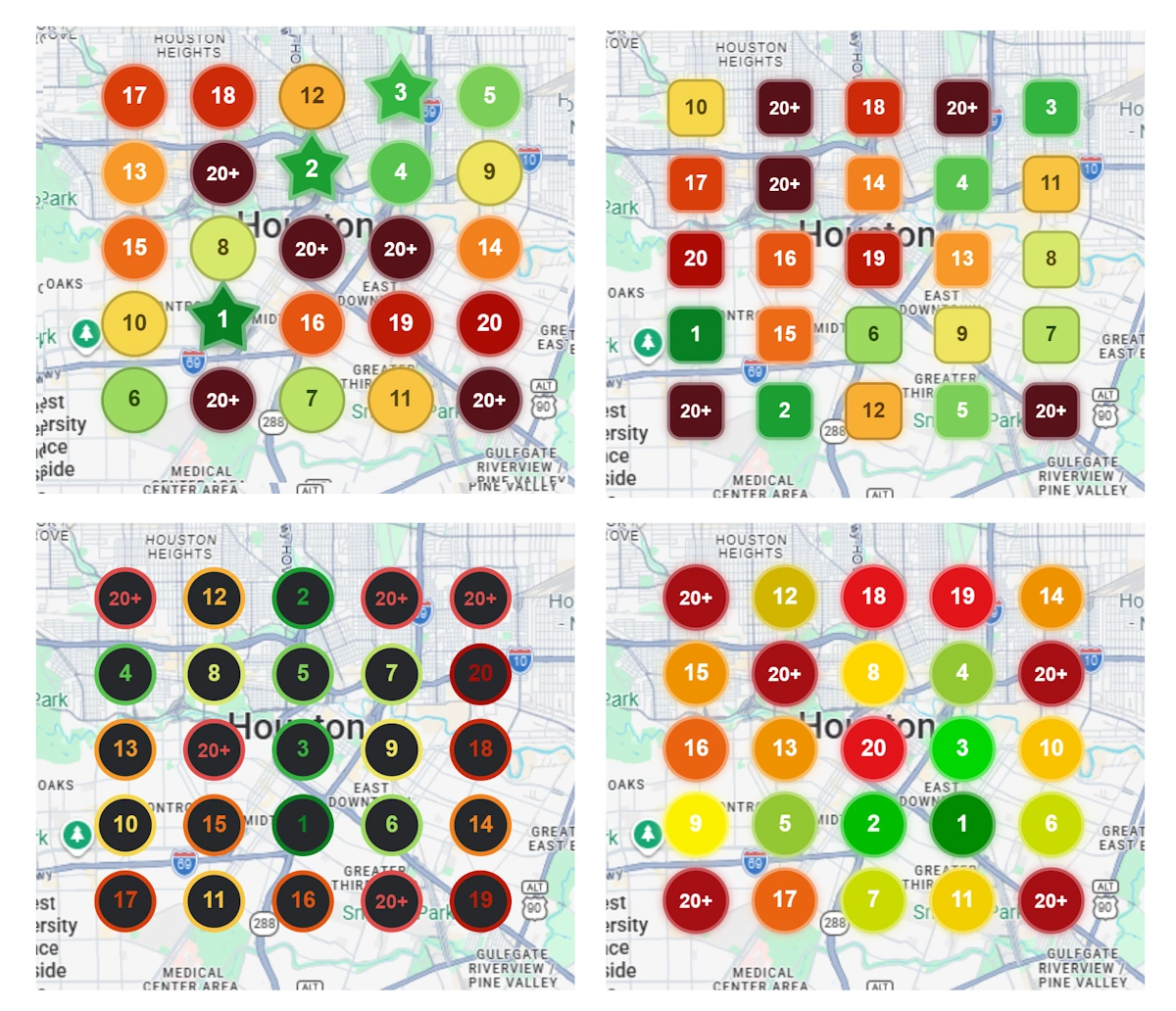
The same scan, styled with different grid themes
This feature lets you choose the visual style of the ranking pins on
your local rank grid. Your ranking data stays exactly the same — only
the look of the grid changes.
Why This Feature Was Needed
Not every report serves the same purpose. A grid you check for yourself
every morning, a report you present in a client meeting, and a
white-label PDF you send under your agency's name all benefit from a
different visual style.
Until now, every scan report in GMB Radar used one pin design.
It worked well, but it was one-size-fits-all. Agencies wanted styles
that looked sharper in client presentations, and some users simply
preferred a bolder or more minimal look.
Grid Themes solve this by letting you pick from a
growing collection of professionally designed styles — and switch
between them at any time.
What are Grid Themes?
A Grid Theme is a complete visual style for the
ranking pins shown on your local rank grid.
Every theme covers all ranking positions, from #1 down to 20+.
Rankings stay instantly readable — green for strong positions, through to red for weak ones.
The theme applies across your scan reports, so all your grids share a consistent look.
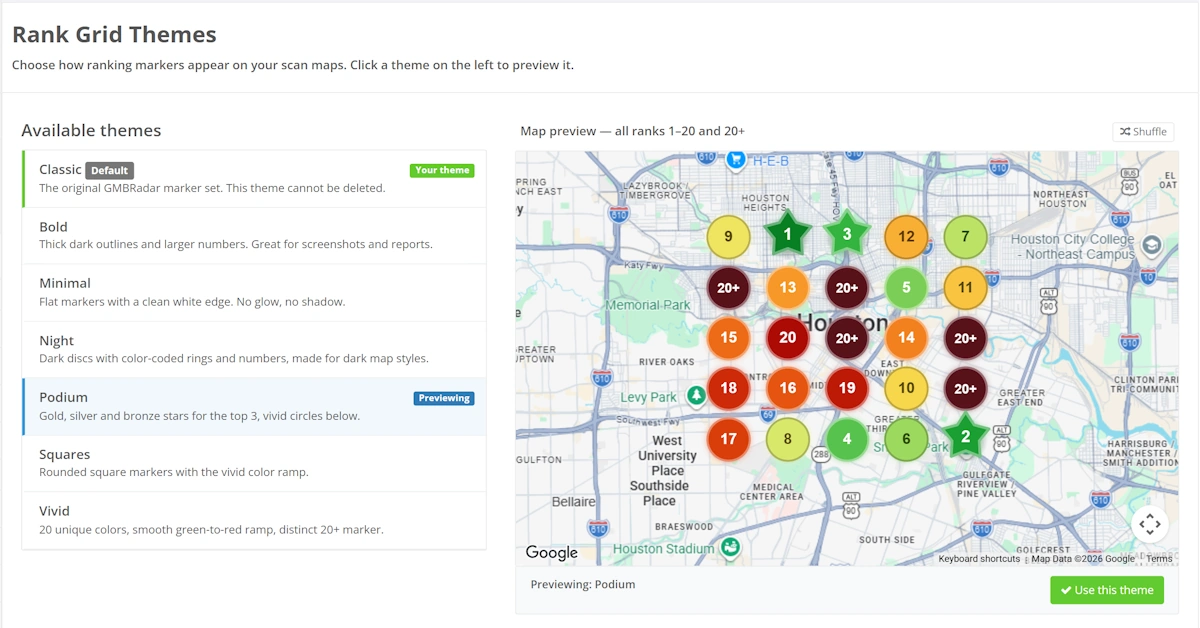
The collection currently includes themes such as Classic,
Vivid, Bold, Minimal,
Squares, Podium, and
Night — with more on the way.
A selection of the available grid themes
How to Choose Your Grid Theme
Go to [Account > Preferences].
Find the Click here to Change Theme option.
Browse the available themes — the preview shows exactly how your grid will look.
Select the theme you like, and your grids update instantly.
You can switch themes as often as you like. Changing the theme never
affects your scan data, history, or metrics — it is purely visual.
Which Theme Should You Use?
For client reports and presentations:
Bold or Vivid — high-contrast pins that stay readable on a projector or in a PDF
Podium — puts extra emphasis on top rankings, ideal when you want wins to stand out
For everyday monitoring:
Classic — the familiar GMB Radar look, refined
Minimal — a clean, distraction-free style for dense grids
For a different look:
Squares — a modern alternative to circular pins
Night — designed to pair beautifully with dark-mode viewing
Benefits of Grid Themes
Reports that match your brand and your audience
Consistent, professional-looking grids across all your scans
Better readability — pick the style that works best for your grid density and screen
Zero effort: one selection, applied everywhere, changeable anytime
Final Thoughts
Your ranking data tells the story — Grid Themes let
you choose how that story looks. Whether you want the classic
color-coded pins, a bold presentation-ready style, or something
minimal and clean, there is a theme for it.
The next time you open a scan report in GMB Radar,
try a few themes and see which one fits your reports best.
The grid map is the heart of every scan report — it is the first thing you see, and for many of your clients, the only thing they remember. To give you more control over how your reports look, we have introduced Grid Themes in GMB Radar.
Local SEO is no longer optional — it's essential for businesses that rely on attracting nearby customers. Whether you're a service-based business, brick-and-mortar shop, or multi-location brand, ranking well in local search can significantly increase foot traffic, phone calls, and sales. But how do you know if your local SEO efforts are actually working?
Small businesses must leverage effective marketing tools to thrive in a competitive landscape. These tools enable business owners to enhance their brand visibility, engage with customers, and streamline their marketing efforts without breaking the bank.
 GMB Radar